Service overview
ReCaS offers its users access to JupyterLab instances through the JupyterHub service.
JupyterLabs are open-source web applications that allow you to create and share documents that contain live code, equations, visualisations, and narrative text. Uses include: data cleaning and transformation, numerical simulation, statistical modelling, data visualisation, machine learning, and much more.
JupyterLab instances served through this service can access your files and directories stored in the ReCaS-Bari storage (based on the GPFS distributed file system, i.e. /lustre and /lustrehome in the ReCaS frontend) and use high-performance GPUs to speed up the execution of your application.
How to Submit a Request
Access to the JupyterHub service is available only to users with an active ReCaS-Bari HTC/HPC account and with the JupyterHub service enabled. Both can be requested through this form.
To request access to JupyterHub through the form, the user must ALREADY be enabled for the HTC/HPC service, as shown in the image. Once this prerequisite is satisfied, it is possible to select either standard JupyterHub access or JupyterHub access with GPU support.
If the user is not yet enabled for the HTC/HPC service, the HTC/HPC account must be requested first through the same procedure.
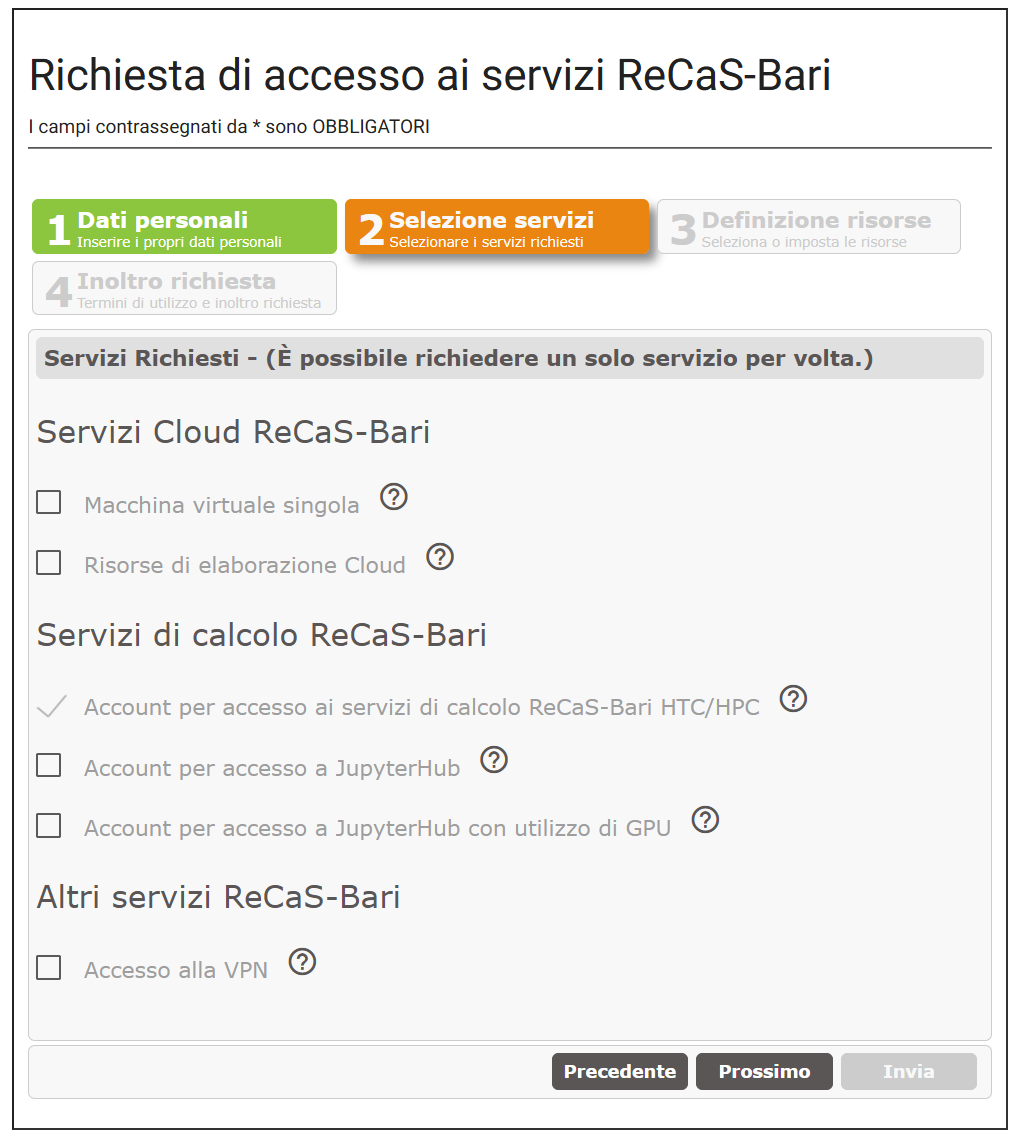
Standard access to JupyterHub is available to all users with an active ReCaS HTC/HPC account.
By default, users enabled for JupyterHub with GPU support are granted access only to MIG partitions of NVIDIA H100 GPUs, each providing approximately 10 GiB of VRAM. These Jupyter instances should therefore be considered R&D environments suitable for submitting computational workloads that are not too heavy. For heavier workloads, execution is recommended on the Kubernetes cluster.
If access to full GPUs is required, please contact the user support, describing the use case and requesting the appropriate authorization.
Please note that access to full GPU resources is granted only when supported by a strong and well-justified motivation.
At the end of the procedure, an automatic confirmation email will be sent and is required to complete the request and set the password. Only after completing this step as well will the request be correctly acquired by our systems.
If the confirmation email does not arrive, it is necessary to contact user support, describing the problem encountered.
The account will be effectively enabled and operational only after it has been signed off by the center's technical coordinators. This phase includes administrative and bureaucratic checks and may require, on average, a few working days. Once the procedure is complete, a further automatic notification email will be sent.